
Kai is a separate program that lives in the Plasma tray. It holds no models of its own: speech recognition, the chat model and the voice all run in lmgw, and Kai reaches them through lmgw's documented API, over lmgw's device link: a key of its own and a certificate, with mutual TLS and no bearer key. Version 0.3.0 adds Firefox integration and needs lmgw 0.6.0; 0.2.0 moved Kai to the device link, and 0.1.0 was the first release. Kai's Android sibling is Kai mobile, which holds the same ongoing conversation on a phone, and Kai for Firefox is the browser extension Kai works through.
What it does
- Voice at any time. A global shortcut starts listening, from any app: press to toggle, or hold to talk. Kai keeps the audio from the moment you press, so a model that still has to load loses no words. You can talk over Kai to interrupt it. For a longer exchange, the model can switch on conversation mode, which keeps listening without the key until you end it or a timeout you set runs out.
- One ongoing conversation. Everything you say goes into one conversation in lmgw's Chat, in a folder called "Kai", so you can read it or carry on typing in the dashboard. A new conversation starts after the folder's idle time, or when you ask for one from the tray. The tray's Personality menu switches between lmgw's personality profiles.
- State you can see. The tray icon shows whether Kai is idle, listening, thinking, speaking or muted, with an amber badge while lmgw's GPU hold is on. While Kai is active, a ring drawn over the desktop follows the voice, the same ring as in lmgw's Chat.
- Audio through PipeWire, with a choice of microphone and speaker and four echo modes: a microphone that cancels echo itself, echo cancellation in Kai, headphones, or half duplex.
- Desktop tools. Kai serves an MCP server to lmgw, so the conversation, lmgw's own Chat, agents
and other clients can use the desktop. The tools cover windows (list, focus, tile, move, close),
seeing and reading (a screenshot of a window or a screen for a vision model, a window's text
through accessibility, the selection, the clipboard, file search and recent files), acting
(open files and URLs, start apps, run commands, media keys, volume, notifications, do not
disturb, Night Light, brightness, lock and suspend) and input (press a button, type text, press
keys). Two delegates,
lookandfind, hand a question to a second model that works with those tools and answers briefly. - A policy for every tool. Each tool is allowed, allowed for trusted callers only, confirmed, denied or switched off, and each has a level that says who may call it at all: Kai's own conversation, you, trusted callers, or anyone lmgw lets through. Input tools are confirmed by default, and "Always allow" in a confirmation sets that tool to allow for trusted callers. A confirmation is a dialog, and a call that waits for approval in an lmgw thread shows as a card over the desktop, which you answer with Enter and Esc, or by saying yes or no.
- Overlays. Tools show small borderless views over the desktop: text, sandboxed HTML, an image,
an emote, a weather card.
overlay_appshows the view of an MCP Apps tool, so Kai is a host for MCP Apps. - Jobs that outlive the turn.
run_commandand long routines run as MCP tasks. The turn goes on, and Kai speaks the result at the next quiet moment, never while you or Kai are talking, or shows it as a notification. The tray's Jobs menu lists and cancels them. - Routines. A folder per routine under
~/.local/share/kai/routines/holds aroutine.tomland becomes a tool of its own: a script, a fixed list of tool calls, or a goal that a delegate works towards. A model can write a new routine as a draft, which stays off until you enable it. Scripts reach Kai's tools and lmgw's models throughkai toolandkai model, under the routine's own policy. - Firefox. With the Kai for Firefox extension, Kai's tools gain the
browser's: tabs, reading pages, tables and PDFs, screenshots for a vision model, pressing, filling
and choosing, numbered hints over the controls in view, bookmarks, history and downloads. Each site
is set to
act,readornone; reading runs for you and acting asks first, and a switch lets Kai act unasked on the tab you brought to the front. The rules also cover Kai's desktop tools on Firefox's windows. Kai can announce what changed on a page and read a page aloud, and Firefox's sidebar runs lmgw's Chat through Kai. - A settings window in plain words, with the policy table, the desktop's providers, every setting in Kai's configuration file, and lmgw's personality profiles. Configuration tools that let a model change Kai's settings exist too, behind a switch that is off by default.
- Updates. Kai checks its releases on GitHub and offers a new version in a notification. The RPM also needs
poppler-utilsandmozilla-filesystemand recommendsbubblewrap.
Screenshots
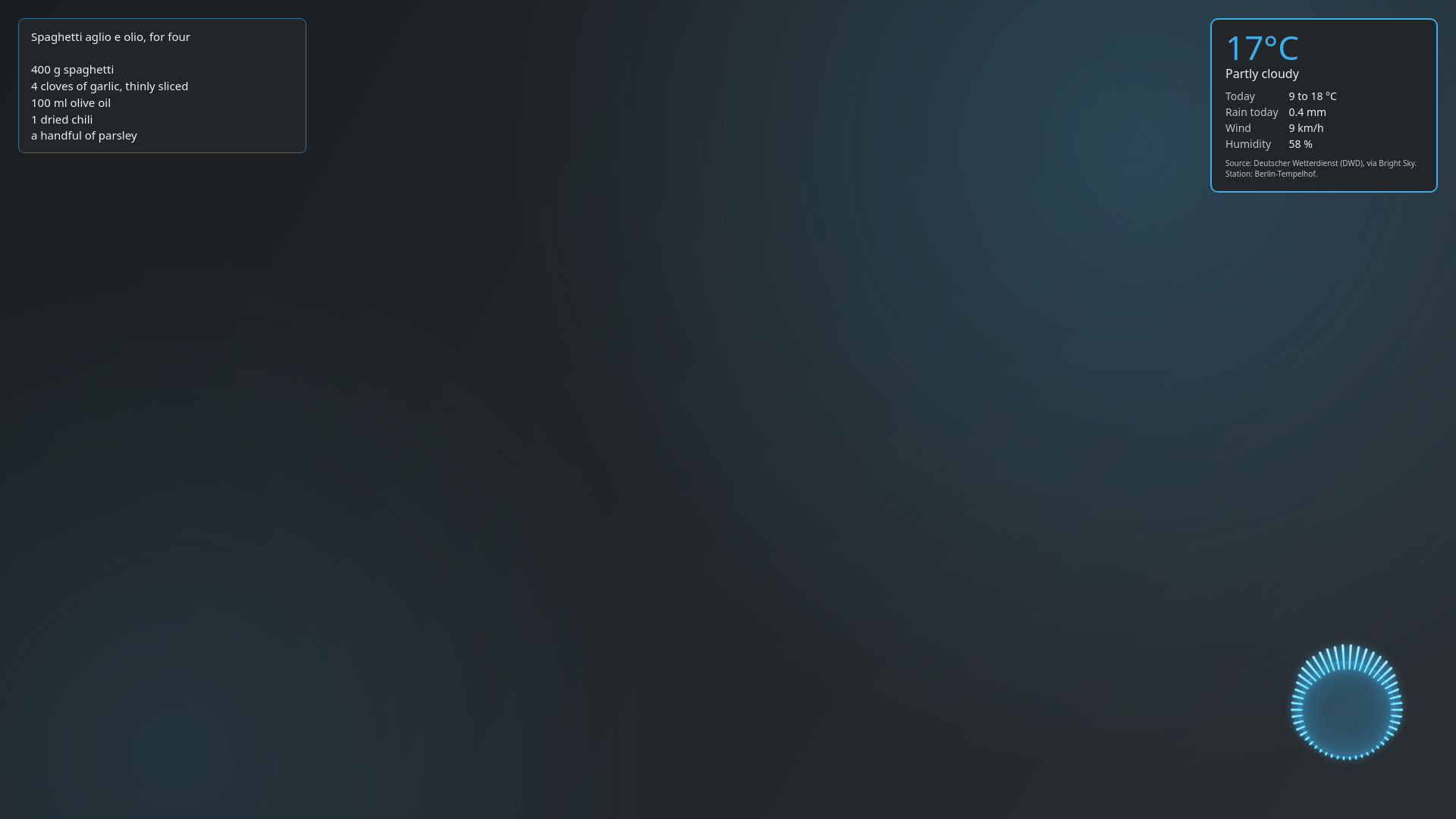
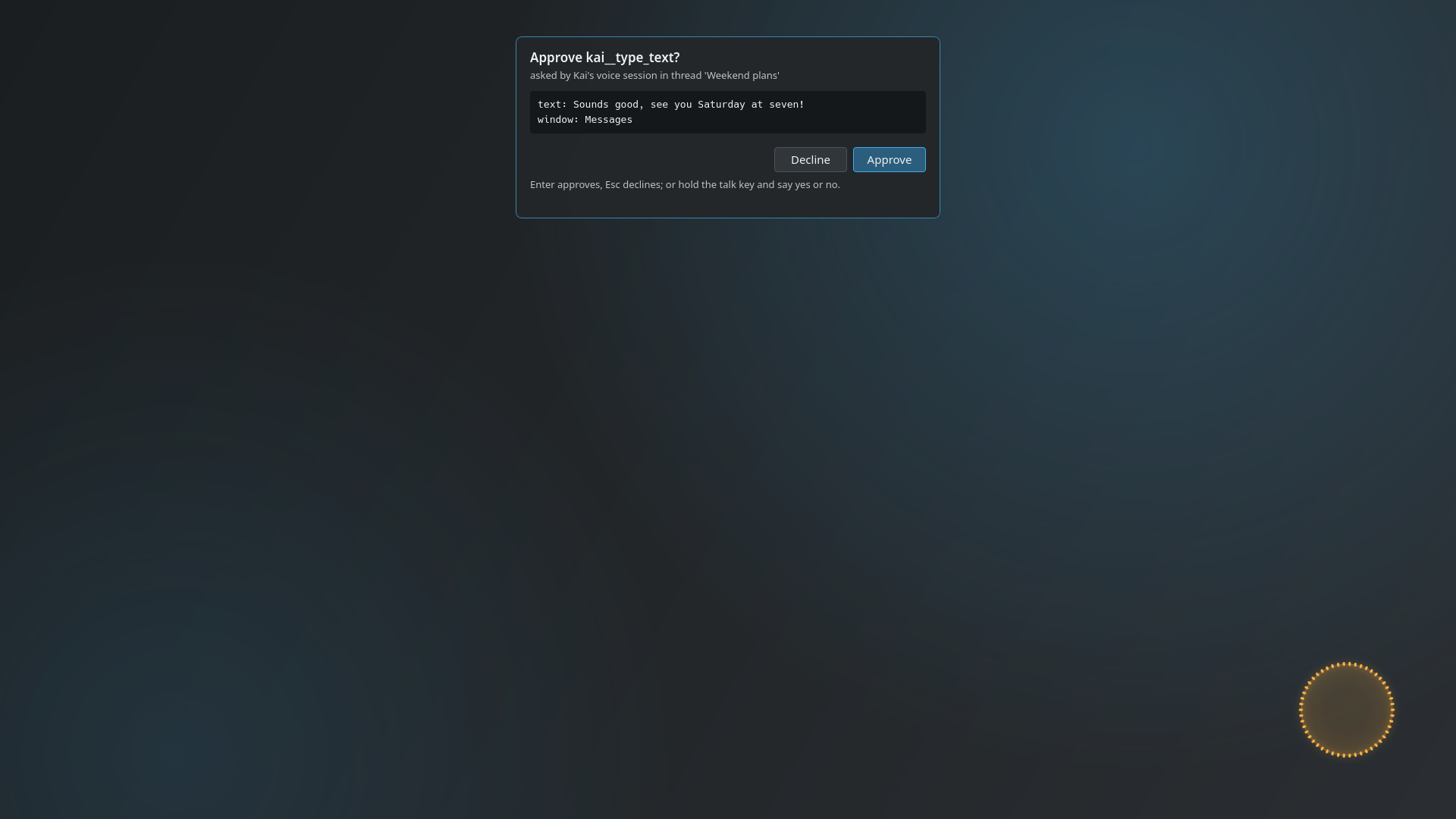
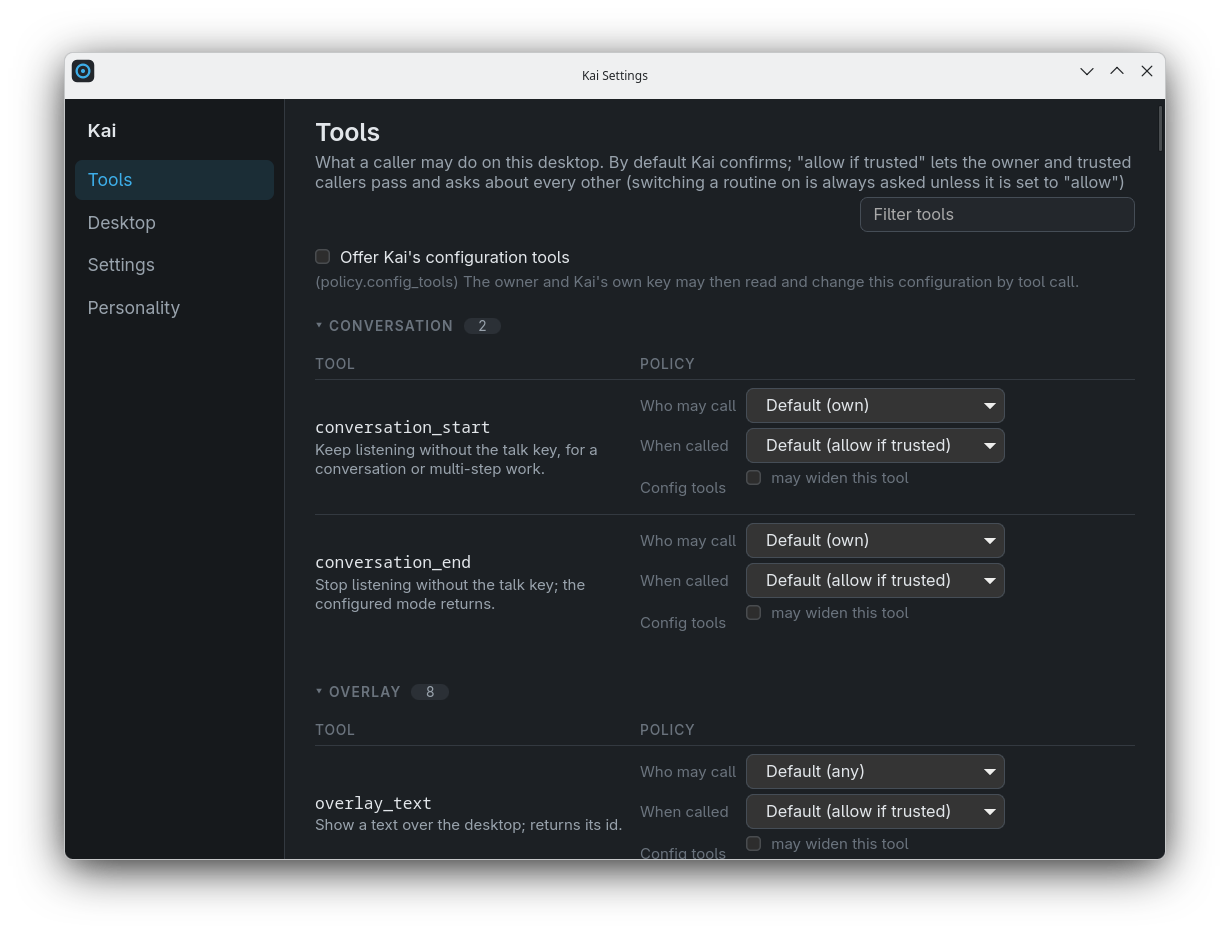
Stand-in content on a 1080p screen at 125% scaling. Select a screenshot for the full image.
Requirements
- KDE Plasma 6 on Wayland, with PipeWire. Kai is packaged as an RPM, built on current Fedora.
- lmgw 0.6.0 or newer, reachable from the desktop, with its device listener on (pairing turns it on) and chat, speech recognition and text-to-speech models set up as for voice mode in lmgw's Chat. The tools that look at the screen need a chat model with vision.
- KWallet (or another Secret Service) for Kai's key.
Install
Download the RPM from Kai's releases and install it:
sudo dnf install ./kai-*.x86_64.rpmThen start Kai from the application menu. It sits in the tray as "not paired". Kai also offers new releases in a notification.
Pair it with lmgw
- In lmgw's dashboard, open Usage → Keys & budgets, and on the Devices card choose Pair a device…. Give it a name, the scopes it may use and, for the desktop tools, a label under hosts tools as.
- Click the pairing link lmgw shows, or paste it into the dialog from Kai's tray menu. Kai shows what it is about to pair with and asks you to confirm. Then it makes a key of its own, enrols it with lmgw over a connection pinned to lmgw's certificate fingerprint, stores the key in KWallet and offers to start with Plasma.
- Kai shows a short code, and lmgw's Devices card shows the same one. When they match, click Confirm on the card. Until you do, lmgw lets the device do nothing, and Kai says that it is waiting for you.
- On its first connection Kai creates the Chat folder "Kai". In the dashboard, set the folder's model, switch on Ongoing conversation with its idle time, and set Retention. Kai names each step in a notification until the folder is ready.
- Press the talk key. Plasma asks you to bind it on first use.
The key never leaves your desktop. The pairing is named, revocable at any time on the same card, and kept out of lmgw's admin side. Its certificate lasts a year by default; Kai says when it is due, and you pair again.
Coming from Kai 0.1.0 or an older build? Its pairing used a bearer key, which lmgw 0.5.0 no longer accepts. Kai tells you to pair again: do it from the Devices card, confirm the code, and Kai removes the old key from KWallet.
Built on lmgw's API
Kai adds no special case to lmgw. What it needed went into lmgw as general features, open to any client: the device link and pairing links, the Chat change feed, ongoing conversations, MCP approvals, late tool results, and devices that host MCP tools. Build on lmgw describes them.
Source and licence
The source is at github.com/lmgw-dev/kai. Kai is under the MIT licence, as lmgw is.